

Method No. 2 – Exclude internal traffic using the data layer
⦁ Step 1. Retrieve the internal data parameter from the data layer
If possible, you should ask them to send the `user_type` (or `traffic_type`, or similar) parameter to the data layer, which could help you identify whether the visitor or user belongs to your own organisation. If a visitor belongs to your organisation, the parameter value must be ‘internal’. If a user or visitor does not belong to your organisation, no `dataLayer.push` should occur.
Here is an example of `dataLayer.push` code that your developer could enable if the user/visitor is associated with your organisation:
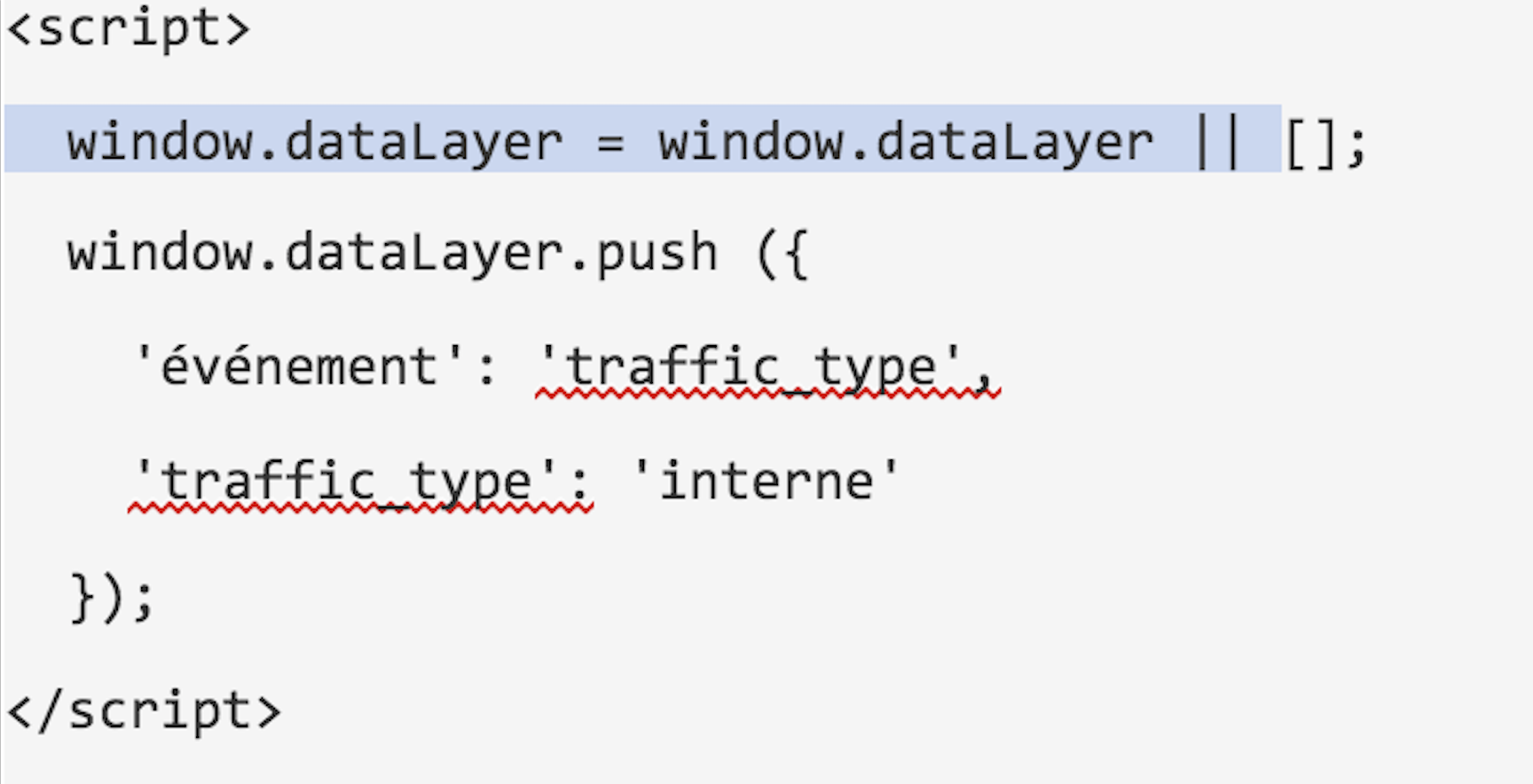
The event key is not required (but is recommended). It is important that this code is enabled before the GTM Container snippet is loaded.
Next, create a data layer variable with the following settings:
⦁ Step 2. Create a developer filter in GA4
In GA4, go to Admin > Data Settings > Data Filters > Create a filter and select "Developer Traffic".
You can enter any name in the «Data filter name» field. Set this filter to ‘Test’ (for now). Save it.
⦁ Step 3. Create a lookup table in GTM to replace the ‘traffic_type’ parameter
Go to Variables > New > Lookup Table.
Here, we use the «Debug Mode» variable as an input. If GTM Preview Mode is enabled, this variable will return ‘true’; consequently, the lookup table variable will return the word ‘developer’. If GTM Preview Mode is not enabled, the Debug Mode variable will return ‘false’; consequently, we will return the value of the data layer variable you created in the first step.
Furthermore, if the data layer contains the ‘traffic_type’ key, its value will be sent to GA. If the key does not exist, it will be set to ‘undefined’ (which means that GA4 will not send the ‘traffic_type’ key at all).
You need to save the variable. Finally, simply go to your Google Analytics 4 configuration tag and enter the following parameter: traffic_type. Its value should be the search table you have just created.
⦁ Step 4. Test the filters
⦁ Step 5. Enable both filters
The final step is to enable both filters. Go to Admin (in GA) > Data settings > Data filters and set both triggers (internal traffic and developer traffic) to ‘On’. You can do this by opening each filter, changing its status, and then saving the changes.
Next, test everything again.
Created by Vaniseo – Your Marseille web agency
Contact us
Our team will get back to you within 24 hours
Fancy finding out how much each channel brings in?
Google Analytics 4, conversions, dashboards: we make your figures easy to understand.
 French
 Spanish
 English