

Method No. 3 – Exclude internal traffic based on a cookie
Another way to exclude internal traffic in Google Analytics 4 could be to use a cookie. You ask your staff to visit a specific, unique URL, then set a cookie using GTM and use its value in the lookup table variable.
⦁ Step 1. Set a cookie for internal users
If most of your employees use Safari (or browse on iOS), Intelligent Tracking Prevention will limit the lifespan of a cookie, and your employees will often need to revisit that unique link.
Next, go to Google Tag Manager and create a custom HTML tag, then paste the following code into it:
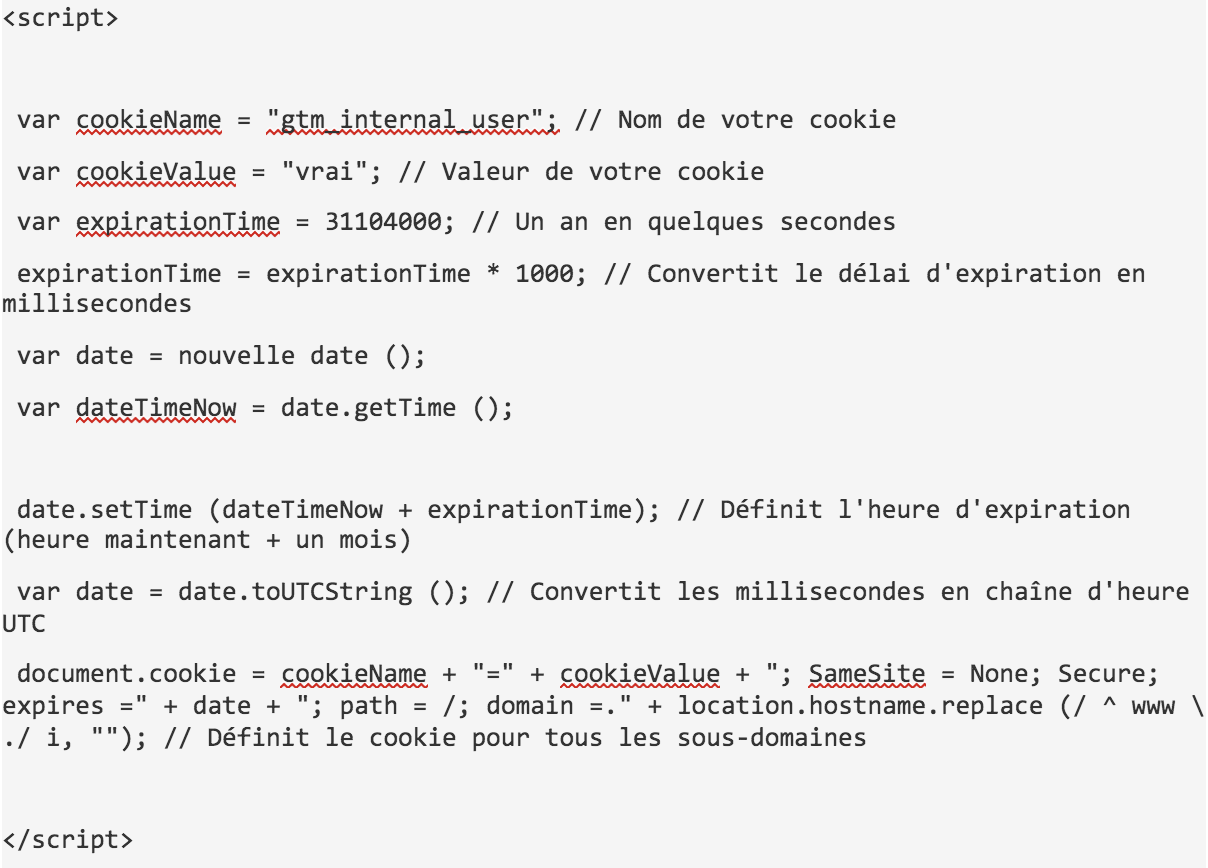
Configure this tag so that it fires on a page-view event when the page URL contains `internal_user = true`.
⦁ Step 2. Cookie variable
Go to GTM > Variables > First-party cookies and enter the following settings:
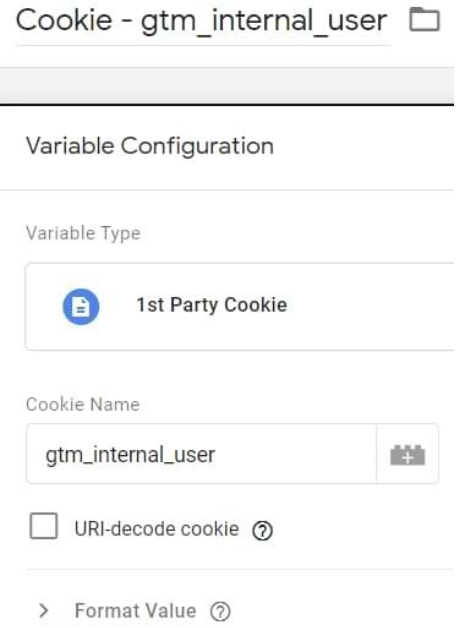
Save the variable
⦁ Step 4. Create a developer filter in GA4
⦁ Step 5. Enable both filters
The final step is to enable both filters. Go to Admin (in GA) > Data settings > Data filters and set both triggers (internal traffic and developer traffic) to ‘On’. You can do this by opening each filter, changing its status, and then saving the changes.
Next, test everything again.
Created by Vaniseo – Your Marseille web agency
Contact us
Our team will get back to you within 24 hours
Fancy finding out how much each channel brings in?
Google Analytics 4, conversions, dashboards: we make your figures easy to understand.
 French
 Spanish
 English