
Need help with your campaigns? Our Google Ads agency in Marseille audits and manages your account.
How do you set up a local Google Ads campaign?
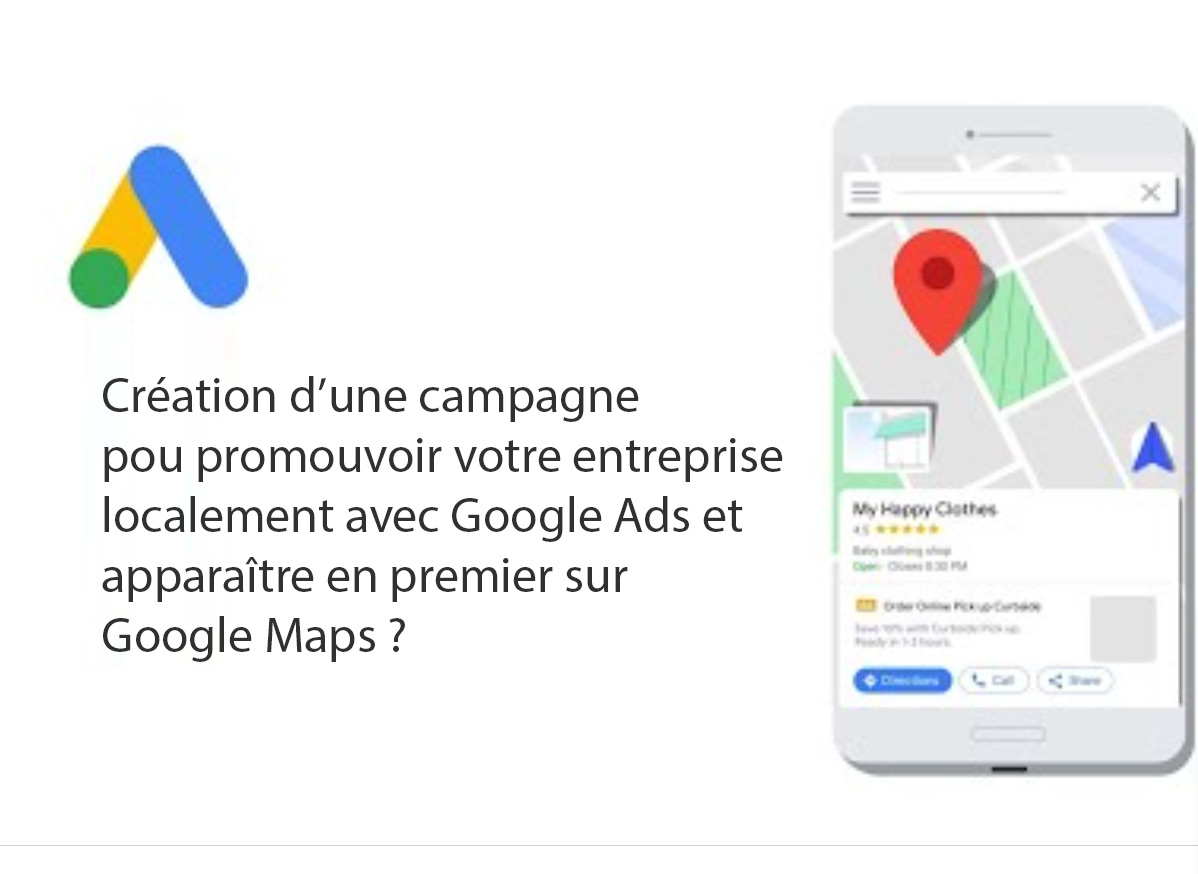
To get off to a good start, make sure you have a Google account and an up-to-date Google My Business listing. Verifying your listing is essential for optimising your online presence.
How to get your business to the top of Google Maps using Google Ads: A comprehensive guide to optimising your local SEO
If you would like your business to appear in the top spot on Google Maps and to dominate local search results, it is essential to optimise your presence on Google with effective local advertising campaigns. Using Google Ads is one of the most powerful ways to gain instant visibility in location-based search results.
Here is a detailed guide to help you set up local campaigns via Google Ads and ensure that your business ranks at the top of local search results, including on Google Maps.
1. Local Search Network campaigns
One of the simplest and most effective ways to appear in local search results is to use the campaigns on the Search Network from Google Ads. This allows you to target a local audience and ensure that your business appears when a user searches for something near you.
Steps to follow:
- Create a new campaign in Google Ads and select the objective: "Promote your business locally".
- Select the campaign type "Research Network" so that your adverts appear in Google search results.
- In the campaign settings, define geographic targeting options. You can target a radius around your address, a town or even a specific neighbourhood where you want to be visible.
- Add location extensions : This will display your business address and direct users straight to your location on Google Maps.
- Create your adverts by using localised keywords that match what your potential customers are looking for. For example, if you are a restaurant in Paris, you can target phrases such as "restaurant in Paris" or "dinner in Paris".
The extensions of place are crucial, as they increase the likelihood that users intending to make a purchase or visit your site will click on your business listing, and they enable you to appear directly in Google Maps.
2. Local campaigns via "Local Ads"
Google Ads also offers a specific local campaign which allows you to target your audience more effectively based on your geographical location without having to use the format Performance Max.
Steps to follow:
- Create a new campaign in Google Ads and select the objective "Promote your business locally".
- Choose the type of campaign "Local Elections" to optimise your location-based visibility.
- Google will help you define the geographical area around your business. You can adjust the radius around your address, or choose specific neighbourhoods or towns where you want to be visible.
- Add your business details, such as your address, opening hours and other information taken directly from your Google My Business (GMB) profile. This makes your adverts more relevant and helps Google better understand where you are located and what you offer.
- Once the campaign has been launched, your adverts will appear not only in Google’s search results, but also directly on Google Maps, which makes it easier for users to find your business and access information such as your telephone number, opening hours, etc.
The local adverts are particularly effective at capturing the attention of users who are searching for services or products within a specific geographical area.
3. Location and promotion extensions: a must for boosting your local visibility
Whether it’s a campaign Research Network or Local Election Campaign, the addition of’extensions of place and from’call extensions In your Google Ads campaigns, this is essential for increasing your business’s visibility on Google Maps and attracting more potential customers.
Why it’s important:
- Venue extension : This option allows you to add your business address to your adverts. It displays your location directly on Google Maps, with options to get directions, which is a major advantage for mobile users who want to visit your premises directly.
- Call extension : Allows users to call you directly from the advert. This is particularly effective for local service businesses where a quick call is essential.
By combining these extensions, you not only increase your business’s visibility in search results, but you also enhance the user experience by making it easier to access your key information.
Conclusion: Attract more customers with Google Ads and Google Maps
By implementing these strategies, you’ll have everything you need to propel your business to the top of the local search results for Google and Google Maps. By optimising your Google Ads campaigns, by using location-based keywords and adding extensions of place and appeal, you’ll maximise your chances of attracting local customers and boosting footfall.
If you’re determined to become the first business that users see on Google Maps, it is crucial to take these steps seriously and to put in place a well-thought-out local advertising strategy. You’re just one click away from reaching your local audience – so take action now and grow your business!
Performance Max campaigns are often recommended
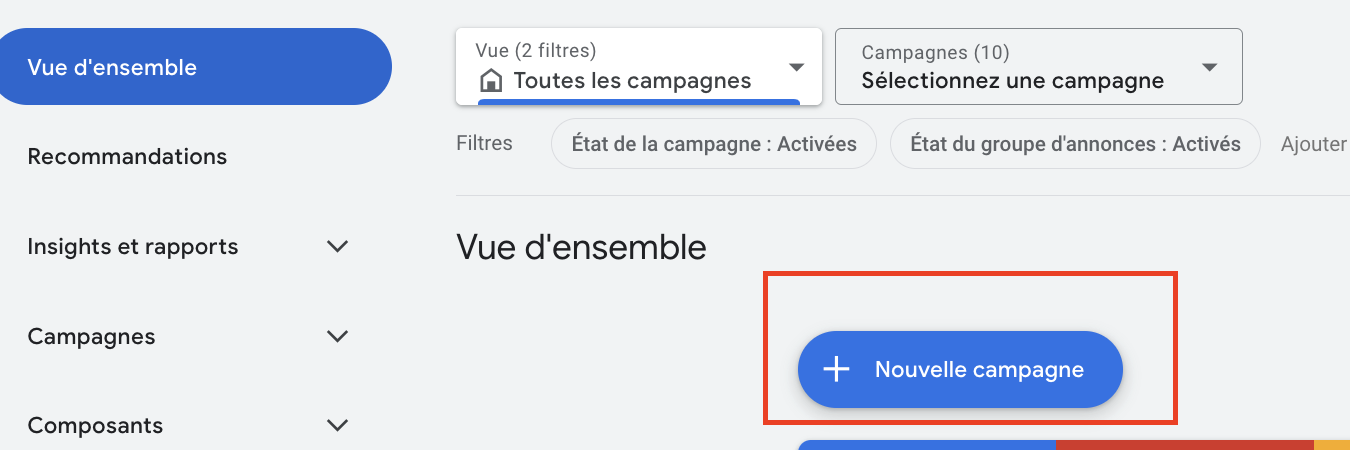
1. Go to your Google Ads account and Click on the “+” button, then on “New Campaign” in the drop-down menu.
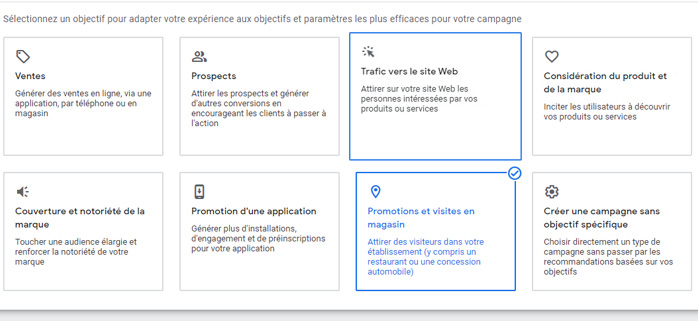
2. Next, select the campaign objective “Promotions and in-store visits”. As explained at the start of this article, the pre-selected campaign type will be “Performance Max”, as Google Ads local campaigns are now integrated into this new advertising format, which offers the same optimisation and automation benefits.
3. You will then need to Choose the objective of your campaign. The choice is yours select either “Contact” or “Request directions”. The first objective is to optimise your campaign for lead generation (and therefore calls and enquiries to your branches), and the second is to drive footfall into your shops.
4. You will then have the option to choose the institutions which you wish to promote.
5. Give it a name to your campaign.
6. Select your auction: “Conversions” aimed at generating the highest number of conversions or “Conversion value” aimed at generating the highest conversion value.
7. You will then have the option to click on — or not — the “Bid only for new customers” option” to ensure that your advert is not shown to existing customers.
8. Select languages spoken by your audience, whether or not you wish to narrow down your targeting.
Alternatively, you can also let Google automatically create ad units using the content of your landing page, your domain and your adverts.
9. Next, create your advert by adding the text of your advert, a photo, a logo and a video. Do remember to preview your advert wherever it will be displayed (Google Maps, YouTube, Gmail…).
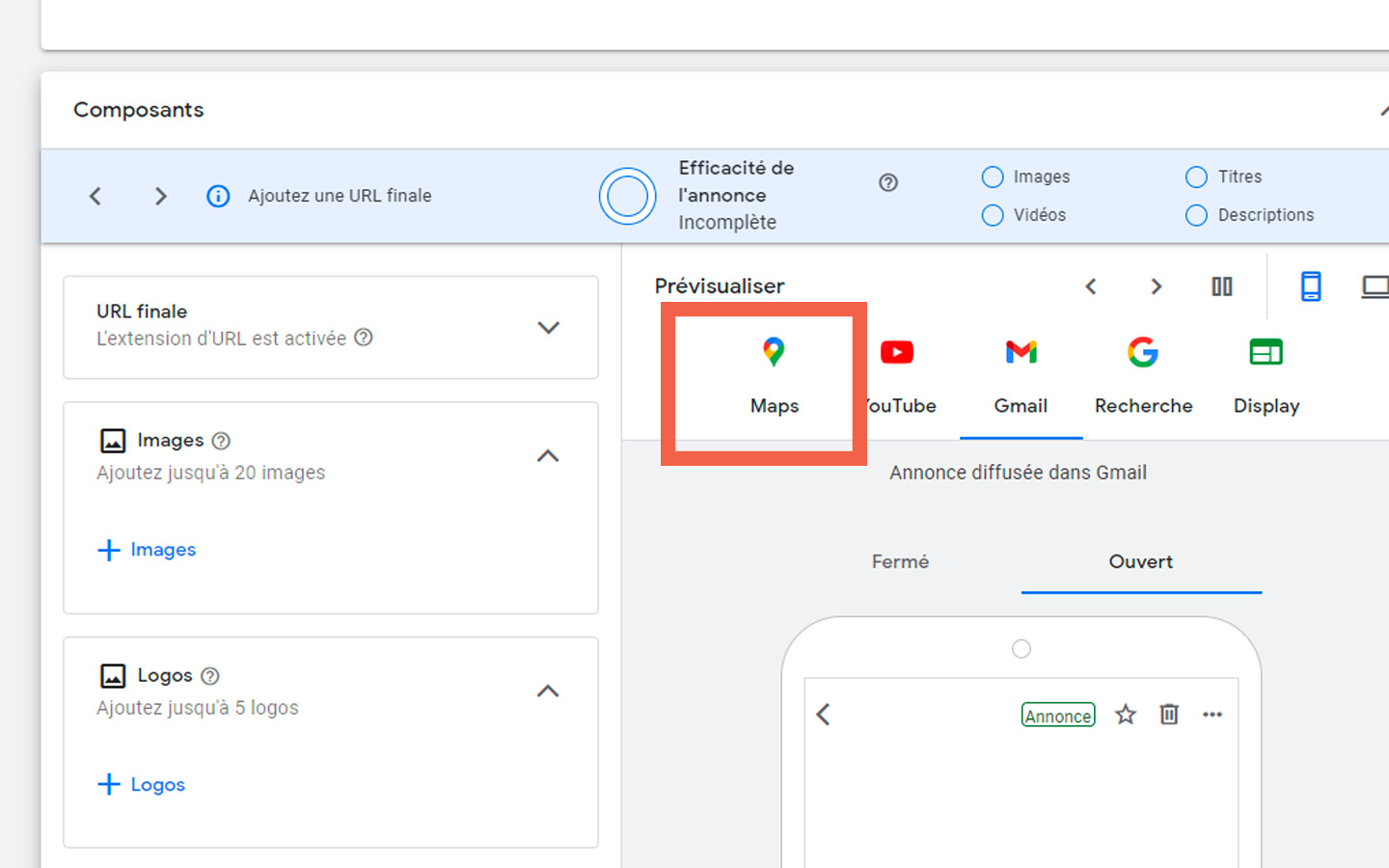
10. Set the daily budget of your campaign
Check all the details of your campaign, click ‘Continue’ and that’s it – your campaign is ready!
Your online visibility is just a click away! Contact our web agency now to boost your online presence
Contact our web agency now to boost your online presence
Don’t let your competitors get ahead of you online. Contact our web agency and take your business to the next level!
Fancy some campaigns that pay off?
Google Ads, Meta, LinkedIn: we launch and manage your campaigns, keeping your budget to the nearest euro.
 French
 Spanish
 English